LAB
EXERCISE 19: Sales Data
Goal:
In this exercise, you will learn how to:
1.
Insert the Main Method (Main Entry Point to the Java Program)
2 Import a Java Class Library
3. Create a Superclass
4. Create Subclass
5. Create an Array to store data of the same data type in memory
6. Declare Public Variables
that can be accessed by a Subclass
7. Create Public Void Method that can be
accessed by a Subclass
8. Create a Constructor which is a special
method that gets executed when object is created from the class
9. Use a Try-Catch block statement for error
handling and exceptions
10. Use the For Loop to allow the iteration and the repetitive execution of code
11. Create Methods that returns a value
to the calling object’s method
12. Use the This keyword to reference a method
or data in the Superclass
13. Create the Object from
the Class
14. Call the Object’s Method
Program Specifications:
This
Java application gathers the sales amounts for the week. The data is then stored in an array to
calculate the totals sales amount for the week, the average sales and the
highest and lowest sales amount.
Pre-requisites:
1. Create a folder on your desktop Exercise-19
2. Launch Java EE- Eclipse
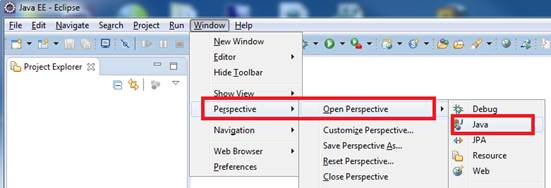
Note: You will need to use the Java
Perspective Workbench for this exercise
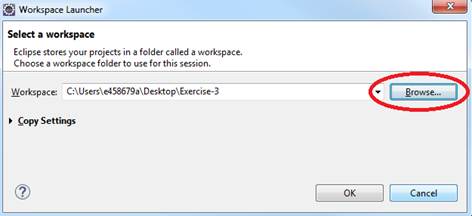
3. Setup your Eclipse Workspace to point to the Exercise-19
folder
a. Select File-> Switch Workspace
b. Browse and select your Exercie-19 folder as your Workspace.
Requirements:
1. Create
a Java Project and name it as Sales
2. Create
the first Class that will have the Main Method
a.
Name the Class as MainApp
b.
Choose the main method to insert into the
class

3. Create
the second Class that will be the superclass
a.
Name the Class as SalesGet
b.
Do not select the main method stub

4. Create
a third class called SalesData. This
subclass will inherit the methods and variables of the SalesGet
superclass
Requirements
for the SalesGet Class:
1. Add
the block comment documentation
|
/* *
Description: This is the parent
superclass that has a constructor *
method to capture the data from the user and then *
store the data in the array. */ |
2. Insert
the javax.swing.JOptionPane class
which will allow data to be inputted from the dialog box
3. Declare
the Final Static variable ONE_WEEK using the Integer data type and initialize to
7.
4. Create
the Public array sales
using the double data type and passing the parameter ONE_WEEK
NOTE: The public array will be accessed by the
subclass
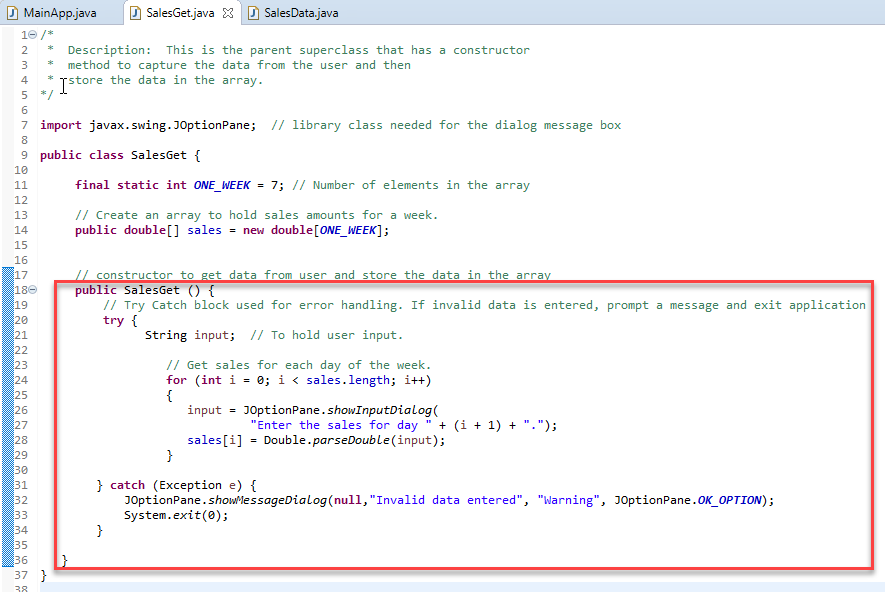
5. Create
the Constructor Method called SalesGet() that
that will prompt the user to input the data and stores the data thein
array. Use a Try-Catch
block for error handing
Note: This special method executes the code when the object is created from the
class.
Below is the code to prompt the user to enter the data and store the data in
the sales array
Requirements
for the SaleData Class:
1. Add
the block comment documentation
|
/* *
Description: This is the child
subclass the contains the *
methods to calculate the total sales, average *
sales, highest and lowest sales amount. */ |
2. The SalesData class
will be a subclass of the StudenGet parent class
(superclass)
NOTE: A subclass will inherit the methods and variables from the superclass
Add the
keyword "extends Student" after the name of class – highlighted in yellow
3. Create the getTotal() method that returns the total sales amount in
the sales array (circled in green)
NOTE:
Declare and initialize the accumulator variable total for the total sales.
Use the keyword this to reference the array in the parentclass.
Use a For Loop to go through
the entire array elements to accumulate the sales total
4. Create the getAverage() method that returns the average sales for the entire week (circled in purple)
NOTE: Use the keyword this to reference
the length of the array in the parentclass.
5. Create the getHighest() method that returns the highest value stored
in the sales array (circled in
orange)
NOTE:
Declare and initialize the highest variable that will temporary hold the first
element of the array
Use the keyword this to reference the array in the parentclass.
Use a For Loop to go through
the entire array elements to find the highest sales amount value
6. Create the getLowest() method that returns the lowest value stored
in the sales array (circled in blue)
NOTE:
Declare and initialize the highest variable that will temporary hold the first
element of the array
Use the keyword this to reference the array in the parentclass.
Use a For Loop to go through
the entire array elements to find the lowest sales amount value

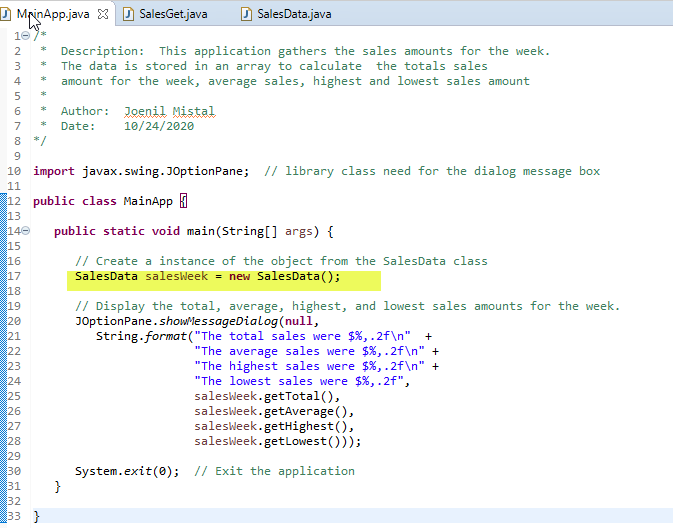
Requirements for the MainApp
Class:
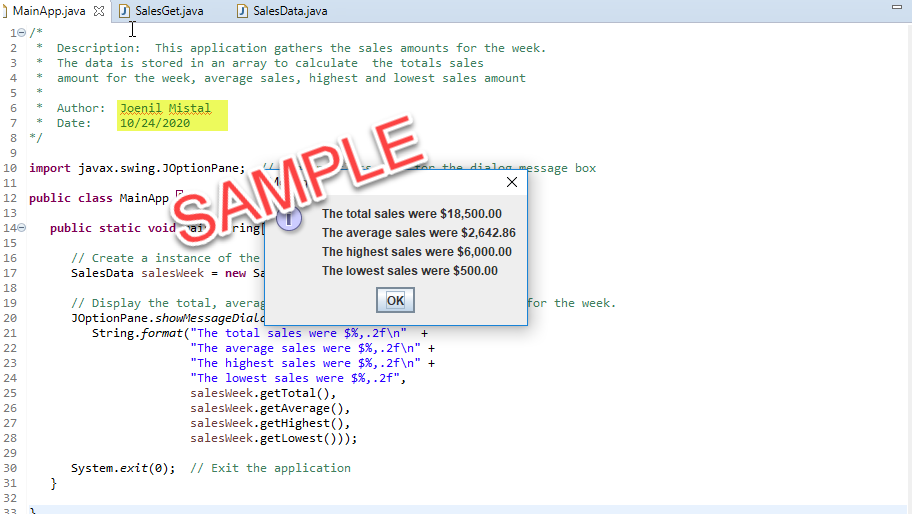
1. Add
comments (documentation)– Program Description, Author and Date
|
/* |
2. Insert
the javax.swing.JOptionPane class
to display the results in a message dialog box
3. Create
the instance of the object called salesWeek from the SalesData
class - highlighted in yellow
4. Below is the code to display the result in the message
dialog box
|
//
Display the total, average, highest, and lowest sales amounts for the week. JOptionPane.showMessageDialog(null, String.format("The
total sales were $%,.2f\n" + "The average
sales were $%,.2f\n" + "The highest
sales were $%,.2f\n" + "The lowest sales
were $%,.2f", salesWeek.getTotal(), salesWeek.getAverage(), salesWeek.getHighest(), salesWeek.getLowest())); |
5. Exit the application System.exit(0);
Test:
1. Save your Java code
2. Compile and run your Java program.
3. Verify there is no syntax, logical or run-time
errors.
4. Use the following set of test data to
determine if the application is running properly
|
Day |
Sales Amount |
|
Day 1 |
2500 |
|
Day 2 |
1500 |
|
Day 3 |
3000 |
|
Day 4 |
4000 |
|
Day 5 |
1000 |
|
Day 6 |
500 |
|
Day 7 |
6000 |
1. Submit
the screen shot of the Eclipse Workbench window showing the message box of
results and the MainApp with the description, author
and date.
You
can use Paint (save as JPG) or Word to paste the screenshot. See example below
2. Zip up
and submit the compressed project folder in the Canvas Exercise-19 drop box.
NOTE: Right click on the subfolder and select Send to “Compress Folder”. The file will have a file extension of .zip.